



Dashboard Guide
1. Dashboard Filter
a. Filter by Date & Event
Filter by date (Date Range)
Function: Select all data on the dashboard (revenue, chart, and table) only within the selected date range.
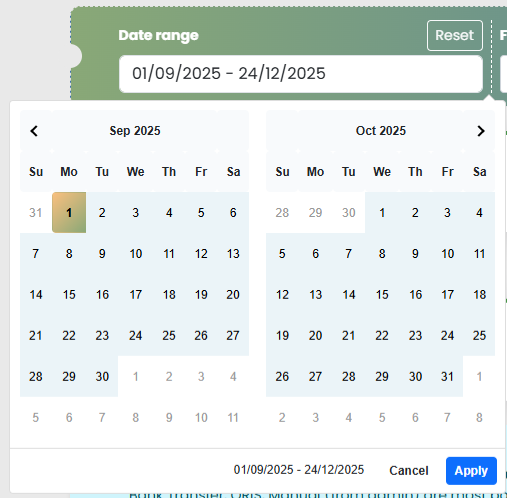
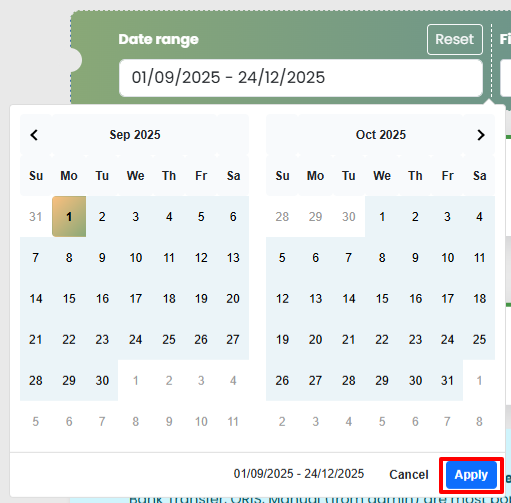
After selecting the date range, press “Apply” on the date range pop-up.
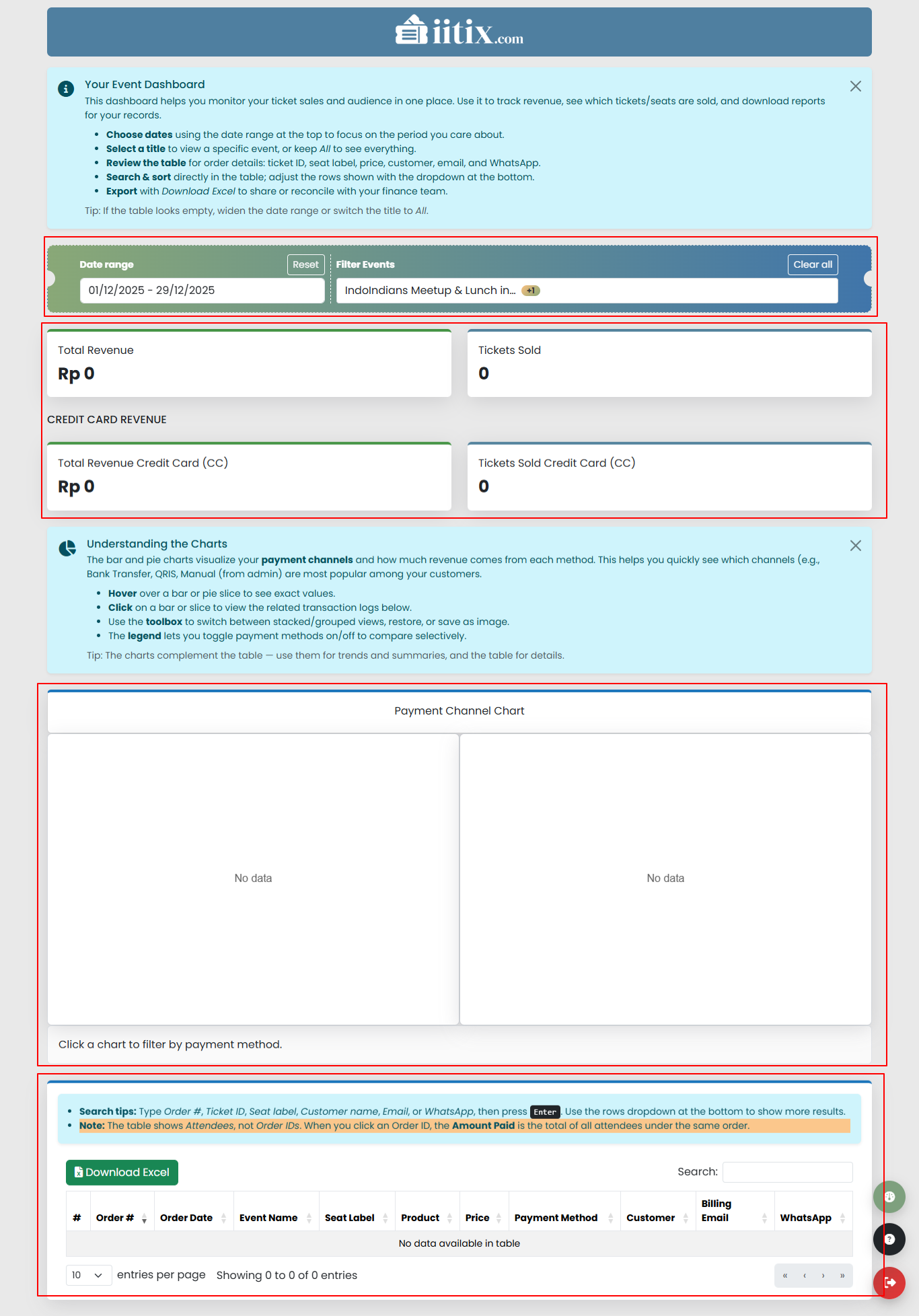
If the table does not display data, the selected date range may be too short. Please widen the date range, then try again.
b. Reset Date Range
Function: Clear the selected date range and return the display to default condition.
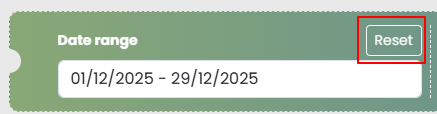
Note: When the Reset button is clicked, the date range will return to today (current day).
c. Filter by event name (Filter Events)
Function: Display data only for the selected event(s) (can be one or multiple events). By default, the filter will display all events.
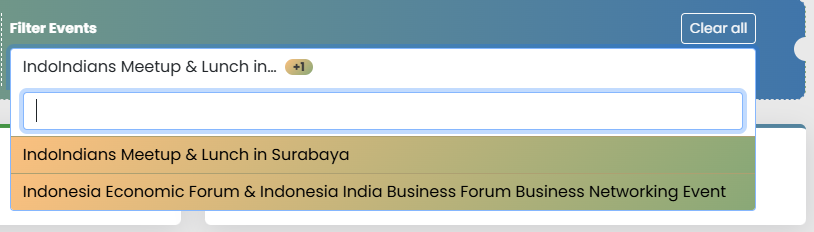
- Click the events search field.
- If the dropdown is colored, it means that event is selected.
- If the dropdown is not colored, it means no event is selected.
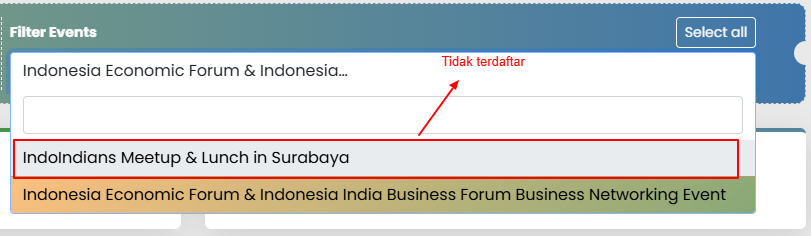
You can search for events by typing the event title in the search field, the results appear in the dropdown.

d. Clear all / Select all
Function: Clear all events or select all events again.
- Click “Clear all” to remove all events from the events search field.

- After that, the button will change to Select All
- Click “Select All” to include all events back into the events search field.

- All Events will return to the events search field. When the field is clicked, all events appear in the dropdown.




Conclusion of the steps for filtering are:
- Select the date range according to the period you want to view
- Select the event you want to filter (default: all)
2. Card Total Revenue
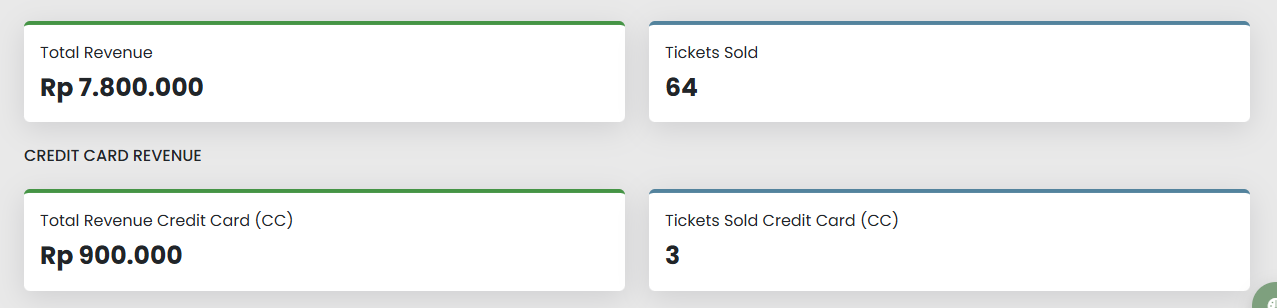
This section displays sales summary and ticket quantity, according to the selected date and event filter.
- Total Revenue: Displays the total ticket revenue for the selected date and selected event.
- Tickets Sold : Displays the number of tickets sold on the selected date.
- Credit Card Revenue: Displays the total revenue paid through credit/debit cards only.
- Tickets Sold via CC:Displays the number of tickets paid using credit/debit cards.
3. Chart (Payment Channel)
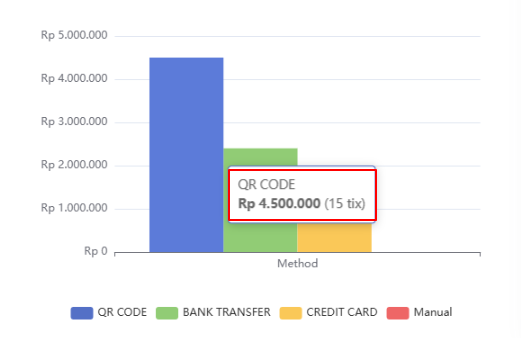
Function: View the performance of each payment method used by participants when purchasing tickets.
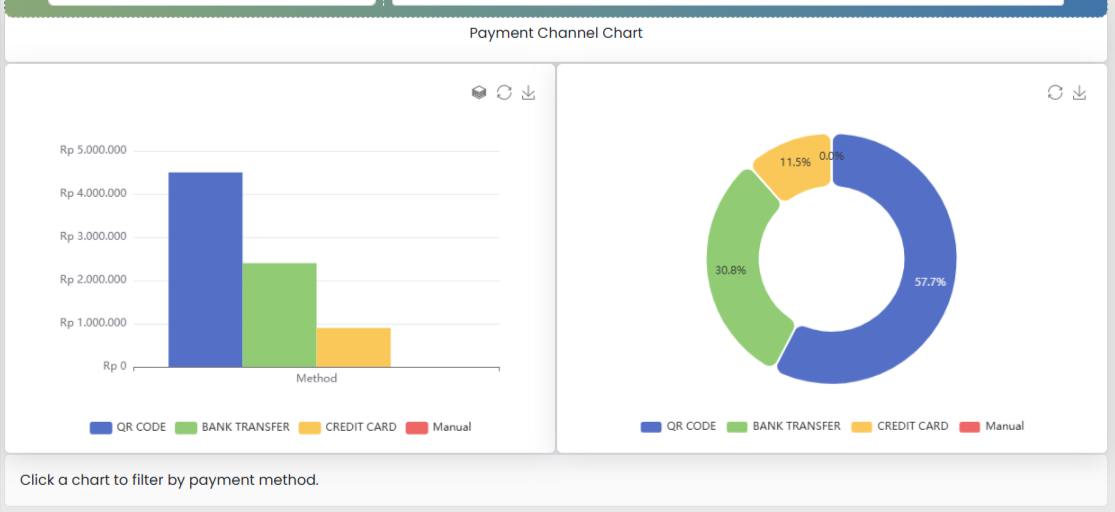
You can also view the number of tickets per payment method by hovering your cursor over the bar chart or pie chart as shown in the image below.
The chart can also be clicked and will filter attendees according to the selected payment method.
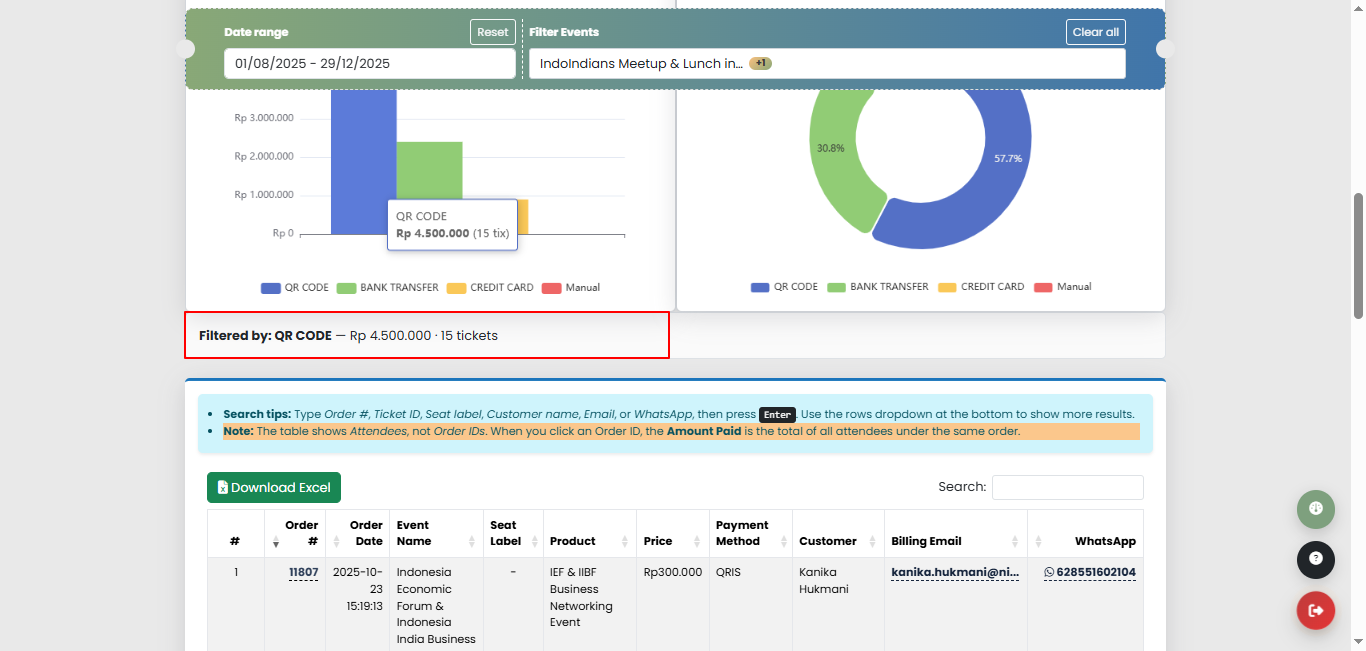
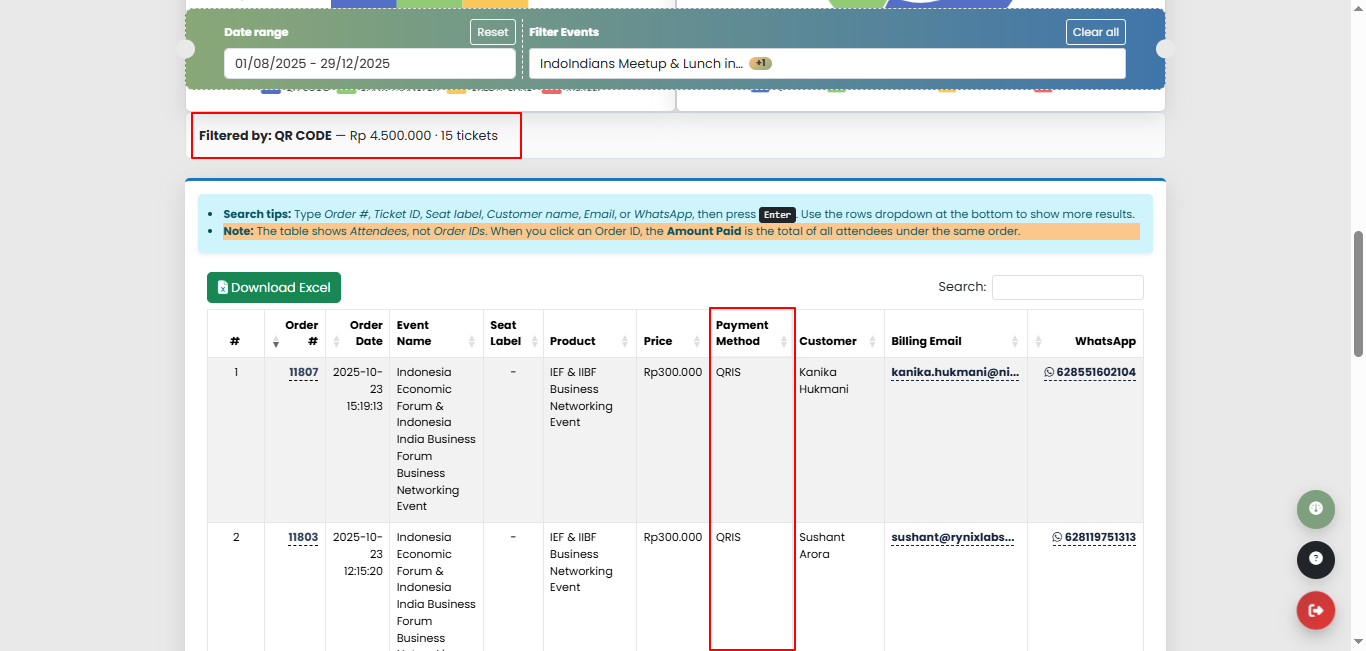
The attendee table will automatically be filtered according to the selected payment method as shown in the image below.
4. Table Attendee
Function: View detailed order/ticket data, perform searches, sorting, and export to Excel.
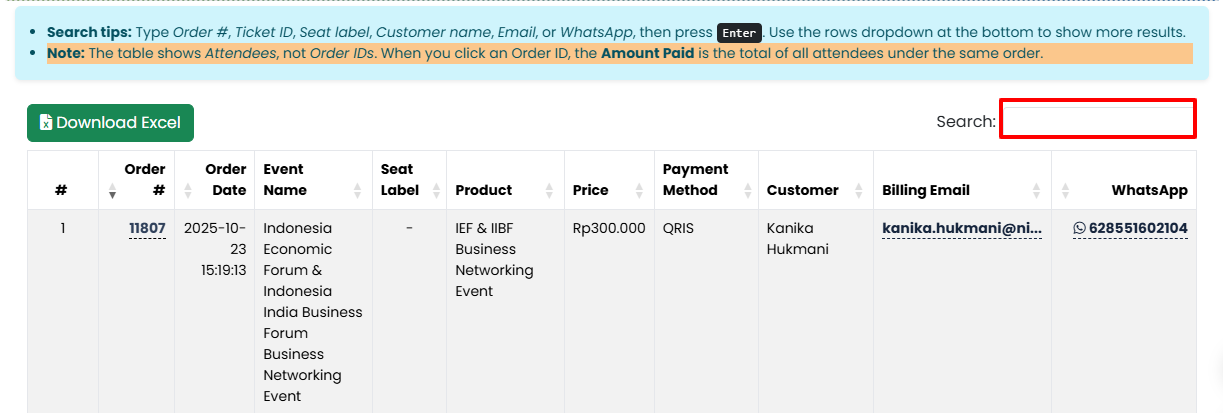
Search
Search for data in the table based on specific information.
You can search by:
- Order ID
- Customer name
- Event name
- WhatsApp number
b. Export
Download attendee data to Excel file.
Note: Make sure the date range matches the period you want to export.
- Change the number per page to “All”

- Once done, then press “Download Excel” above the table

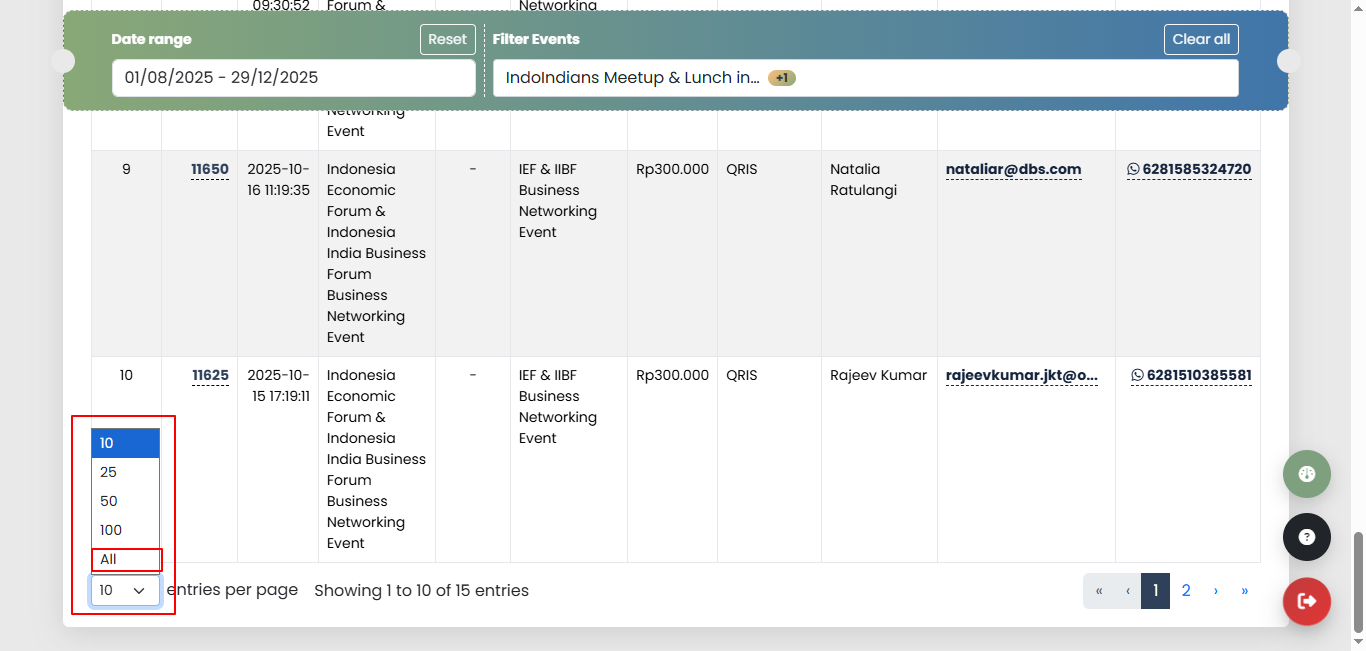
c. Rows PerPage
Set the amount of data displayed in 1 table page
- Scroll down the table, then
- Select the desired number of rows.
d. Pagination
Switch pages to view other data
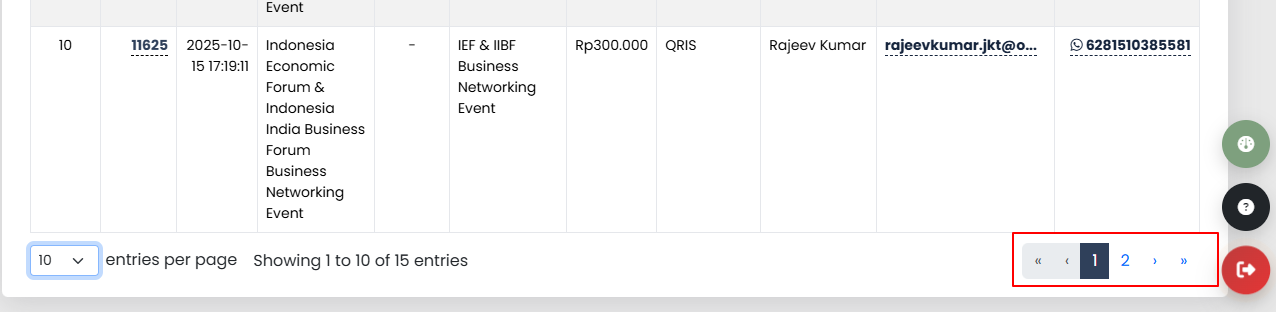
Note: Data will be divided into several pages, depending on the number of rows you select