


Login As Host
1. Access host login page
a. Login from iitix.com
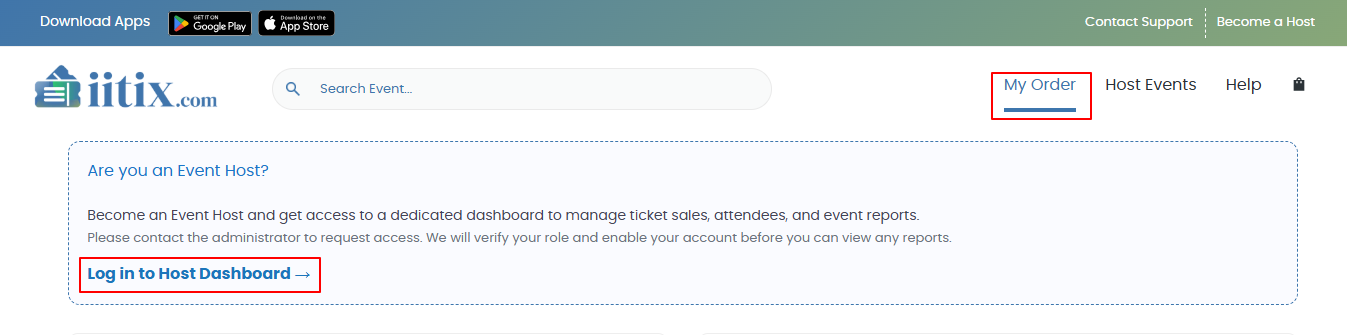
- Open iitix.com then click the “My Order” menu. After that, there is information stating “Are you an Event Host?” (especially if you are an event host), click the “Log in to Host Dashboard” link to direct you to login as host.

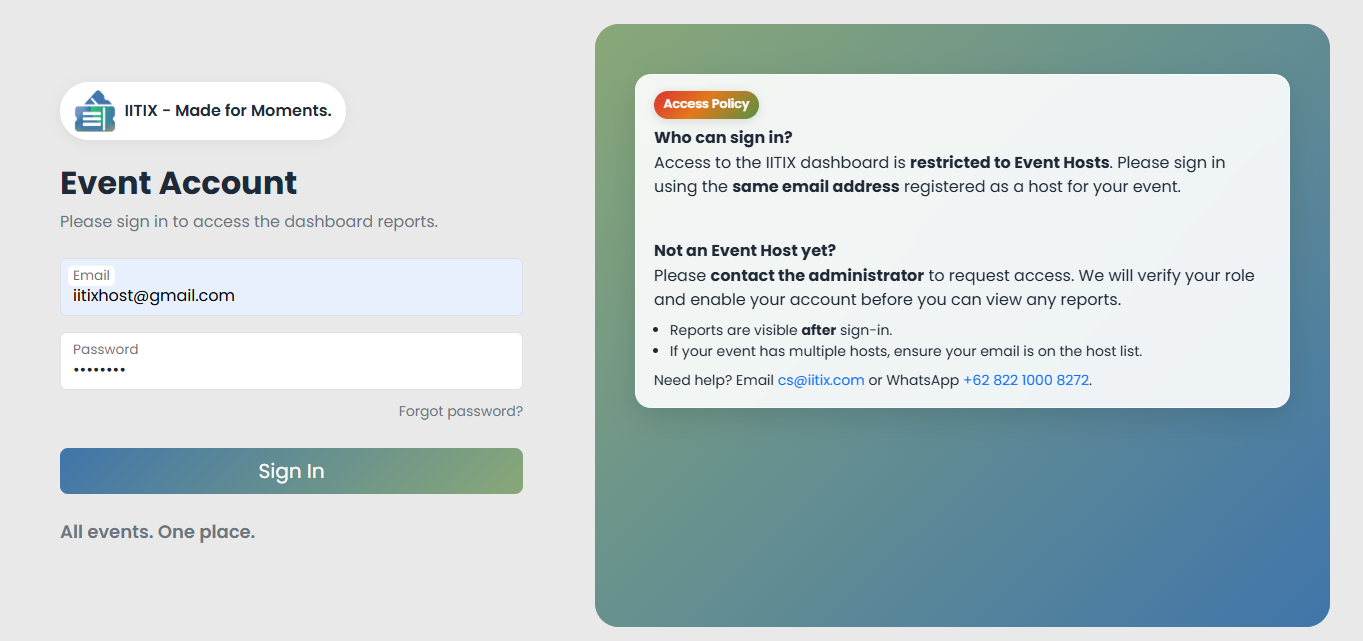
- The website will automatically redirect you to the IITIX Dashboard login page for hosts

b. Direct access from link
You can access the host login page with the following link: Login
2. Enter email & Password IITIX Dashboard Login
a. Login host event
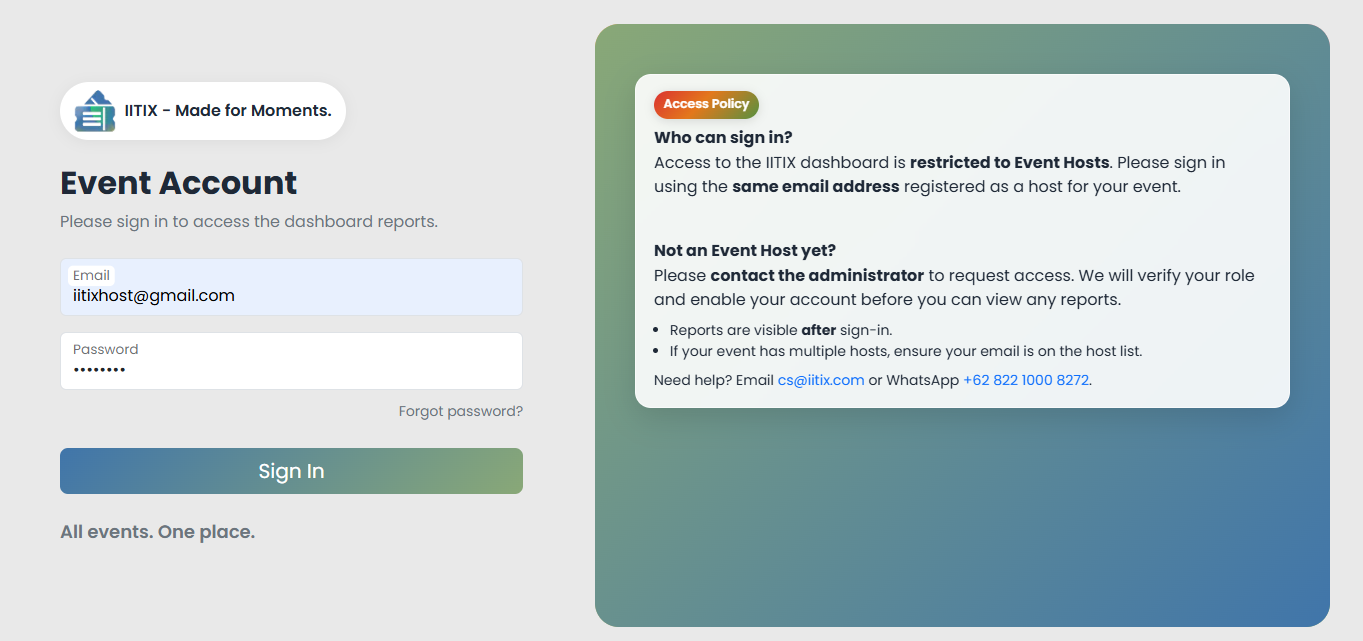
After that, enter the email and password that have been created by the admin for the event host
b. Don’t Have an Account
If you haven’t been created an account as a host, you can contact IITIX admin by:
1. Email: Send email to cs@iitix.com
2. Whatsapp: Whatsapp to number +62 822 1000 8272.
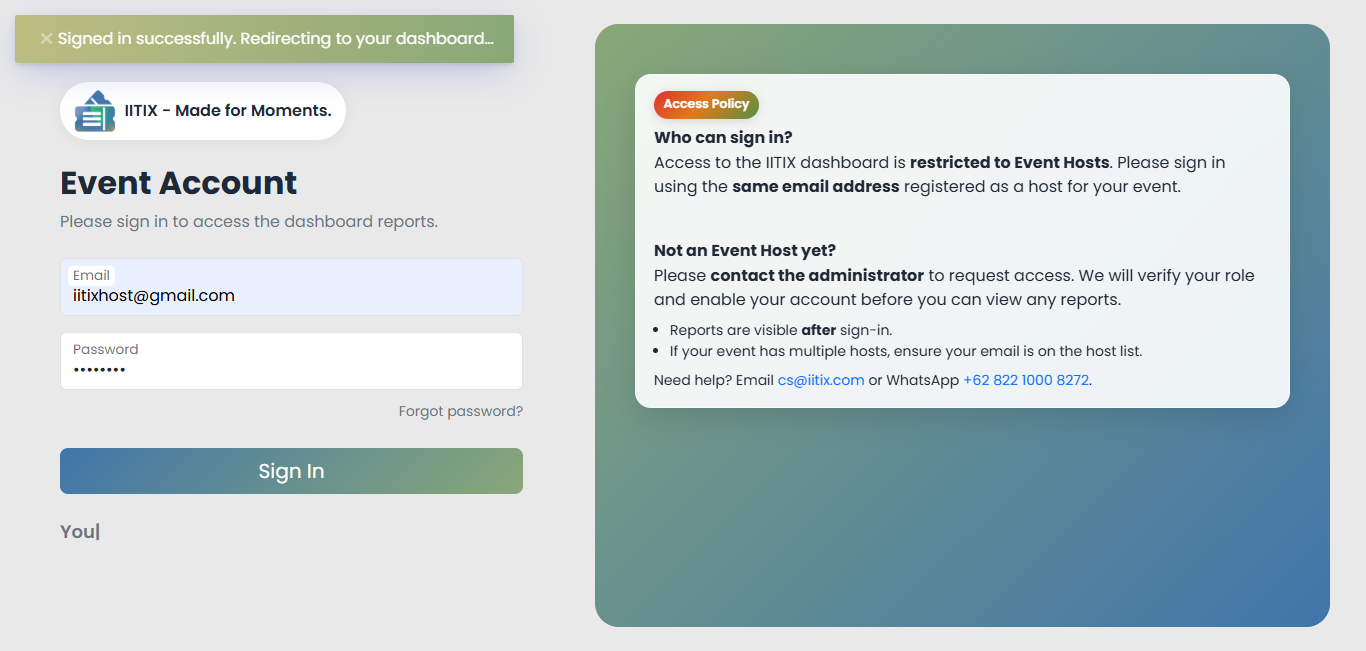
3. Login Successful
a. Login host event
If login is successful, you will be redirected to the dashboard page.
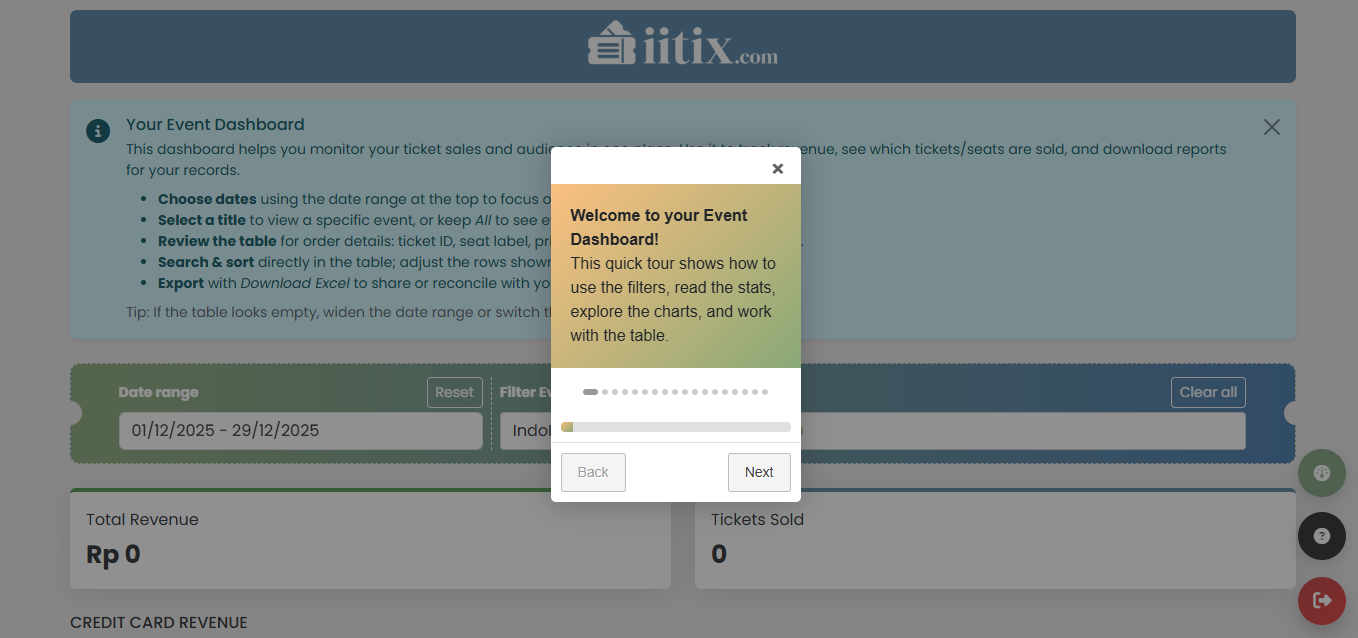
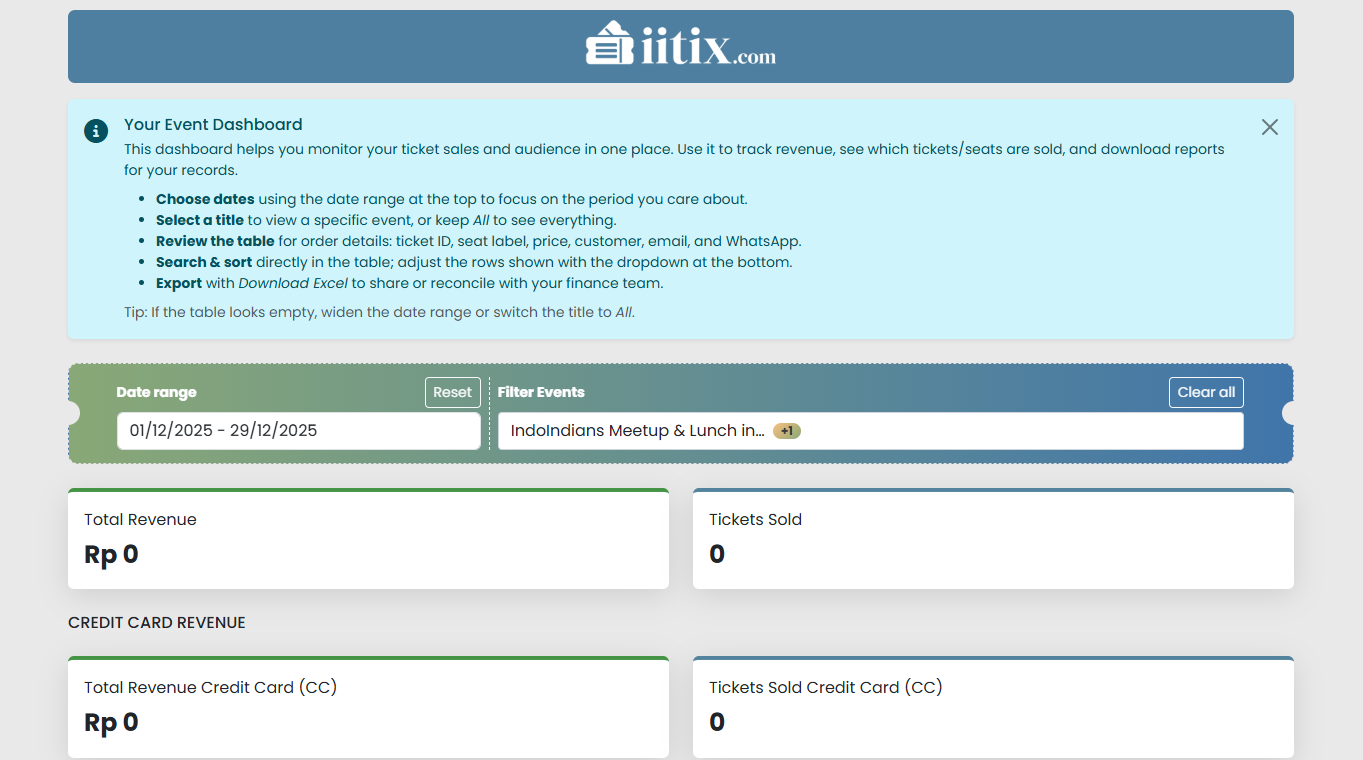
b. Host Event Dashboard
Introduction to using the IITIX dashboard
Please learn how to use it from the intro available on the dashboard.
4. Login failed (Reset Password)
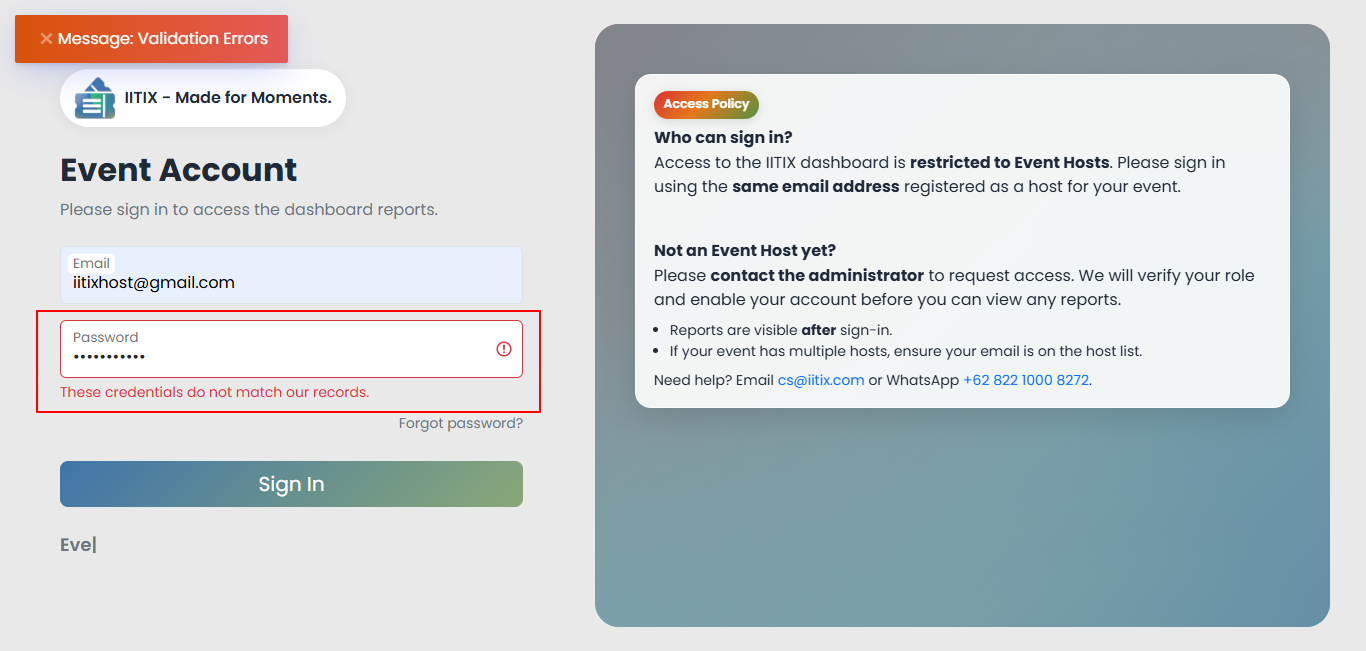
a. Login Failed
Once done, click the “Sign In” button. If the credentials are incorrect, the system will display an error message as shown in the image below:
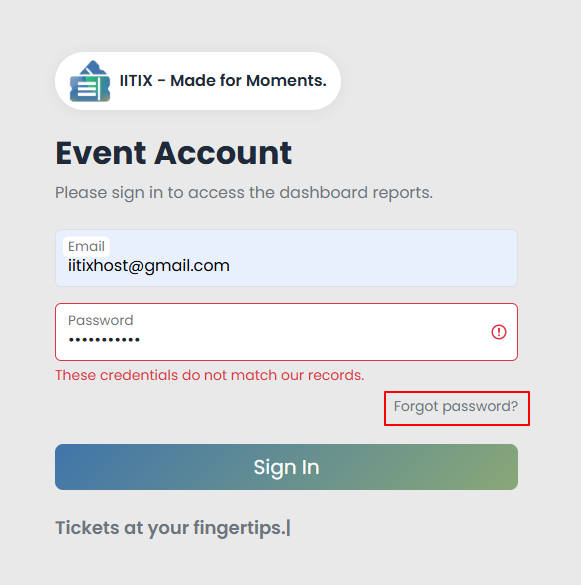
b. Password Recovery
If you forgot your password, you can perform password recovery (reset password) by clicking “Forgot Password” below the password input field.
c. Password Recovery Page
After that, you will enter the email that has been registered as an event host.
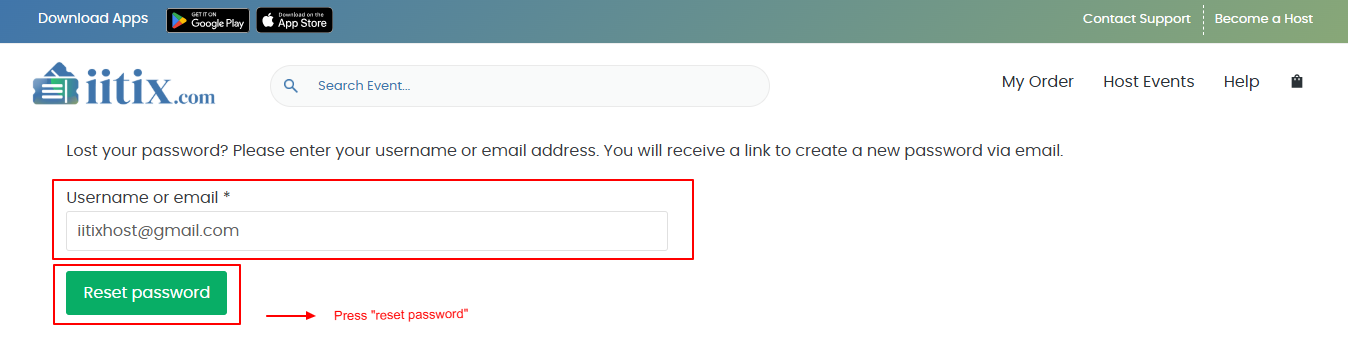
d. Send Recovery Email
- Please wait a few moments until the password reset email is received.
- Click the password reset link, then change to a new password.
- After changing to a new password, please log in again with the link that has been provided Login
- If you don’t receive the email, please check your spam folder. If you still don’t receive it, please contact IITIX admin.

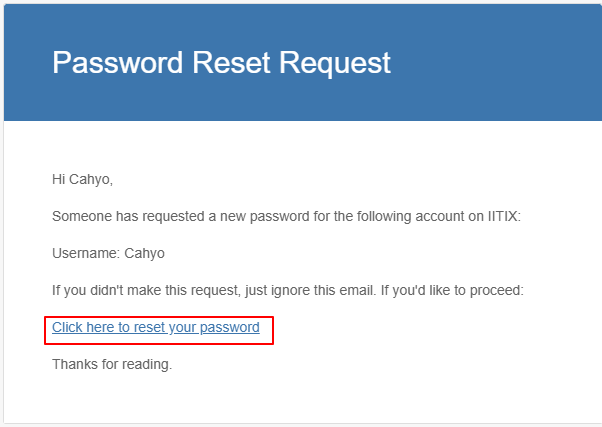
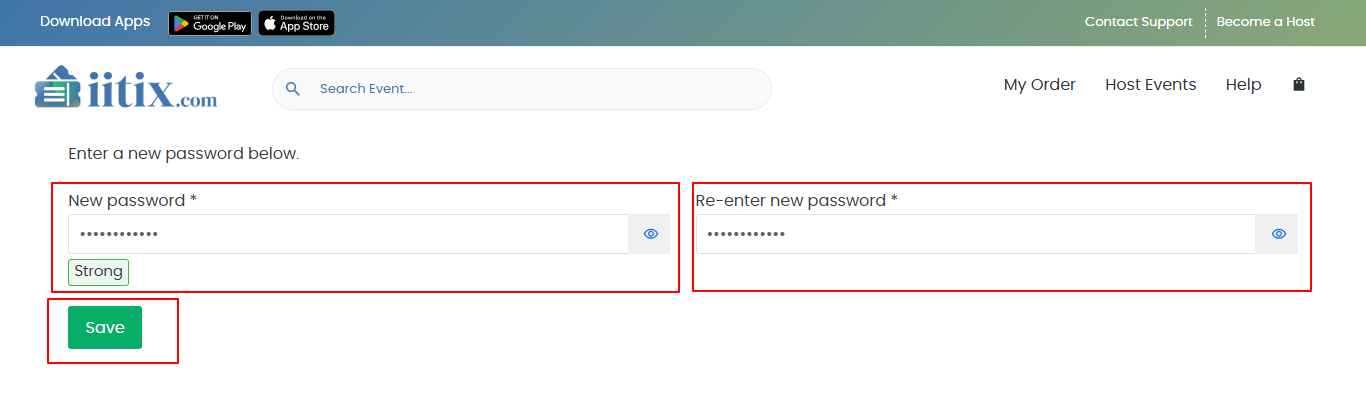
e. Change Password Page
- Fill in the new password and also confirm the new password
- Make sure you enter a strong password consisting of (capital letters, numbers, and special characters).
- Once done, click the “Save” button.

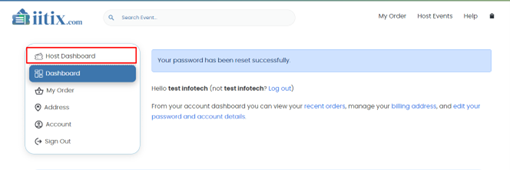
f. Successful Password Reset
- The system will redirect to the dashboard page.
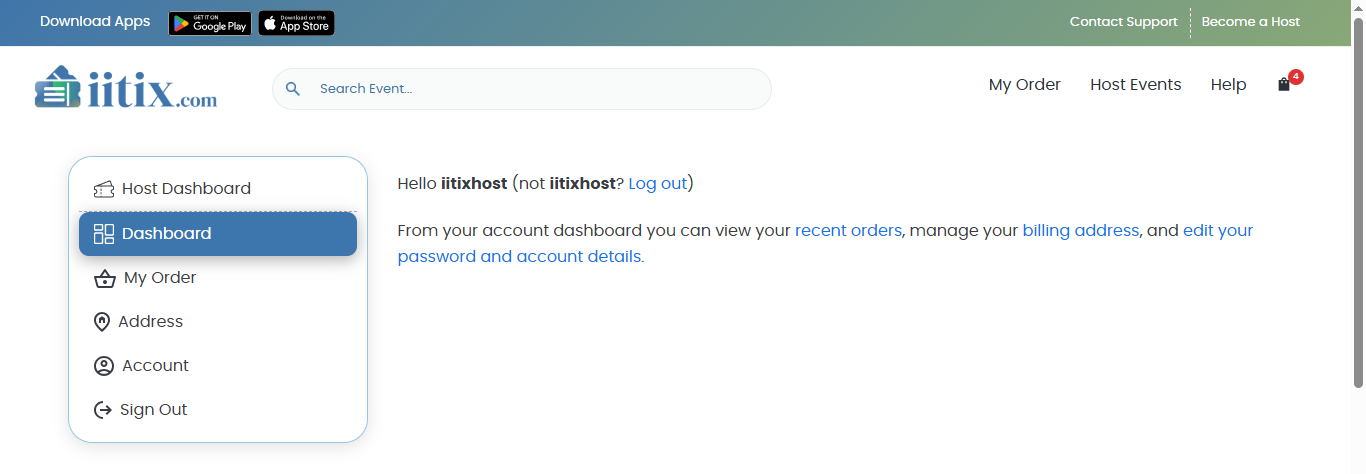
- After that, to access the dashboard as a host, you can click the link on the left menu “Host Dashboard”
- The “Host Dashboard” menu appears if you are registered as an event host.

g. Dashboard Host
The system will redirect to the dashboard page if you are registered as a host.
h. Return to customer dashboard
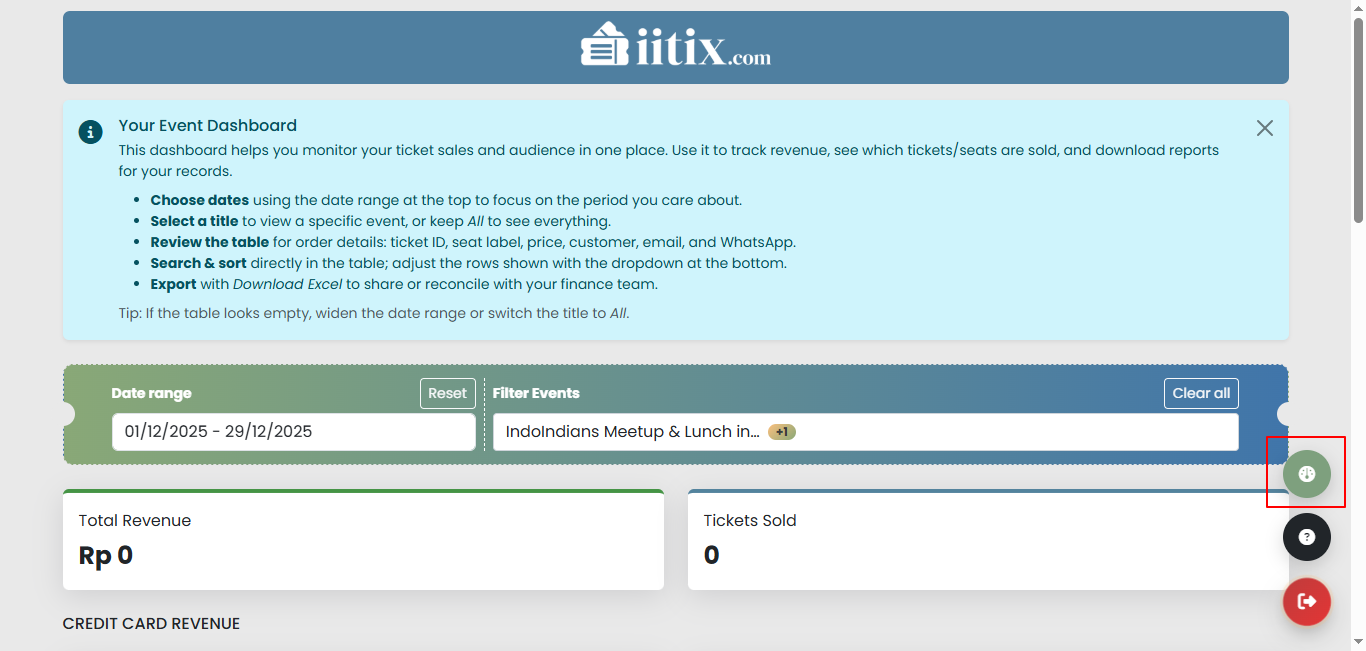
Click the button on the right side with the tooltip name “Dashboard Panel” to open the modal pop-up.
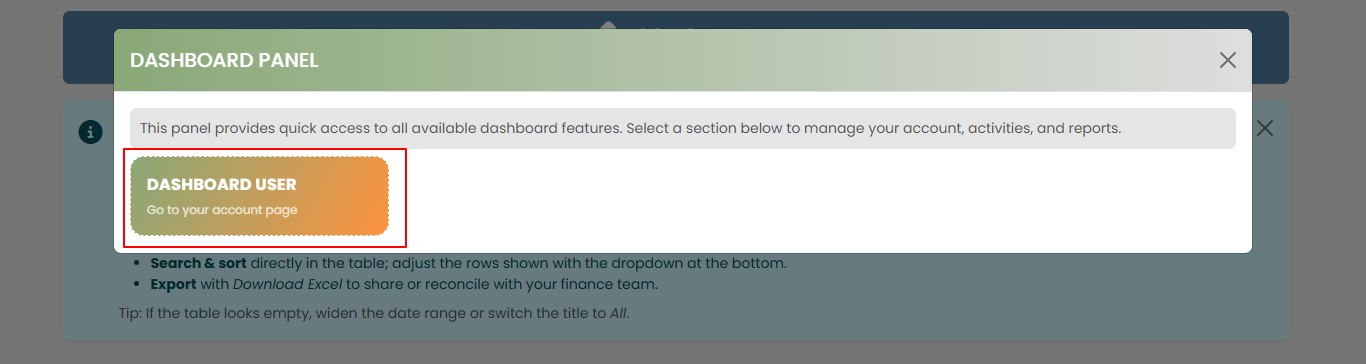
After that, click “DASHBOARD USER” and the system will redirect to the customer dashboard page.
This is an example of the user dashboard page when you click on the host dashboard “DASHBOARD USER”.