



Ticket Ordering Guide
A. Access the IITIX Website
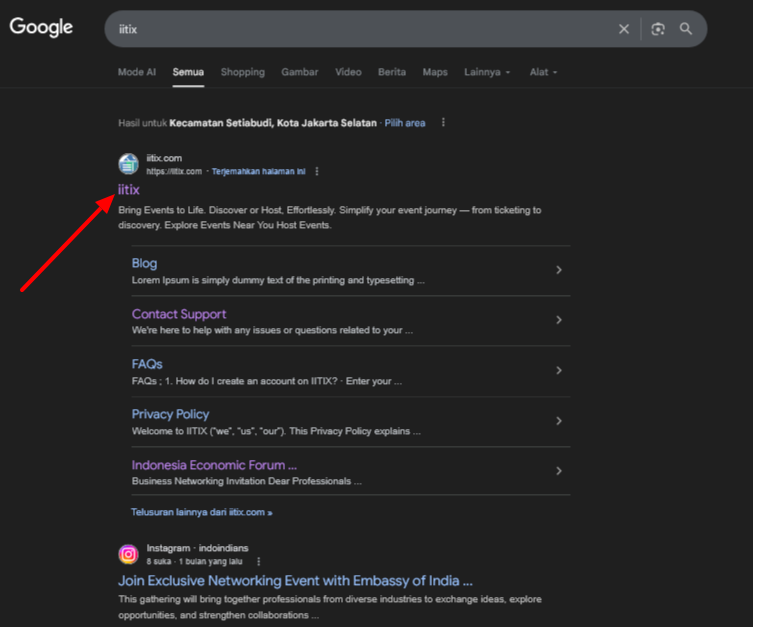
Figure 1. IITIX on Google search results
- Open your browser and go to: https://iitix.com (Make sure the link starts with https)
- If you don’t have the link yet, search on Google (or another search engine) using the keyword “iitix” (Figure 1)
- Click the IITIX website in the search results to open the landing page (Figure 2)
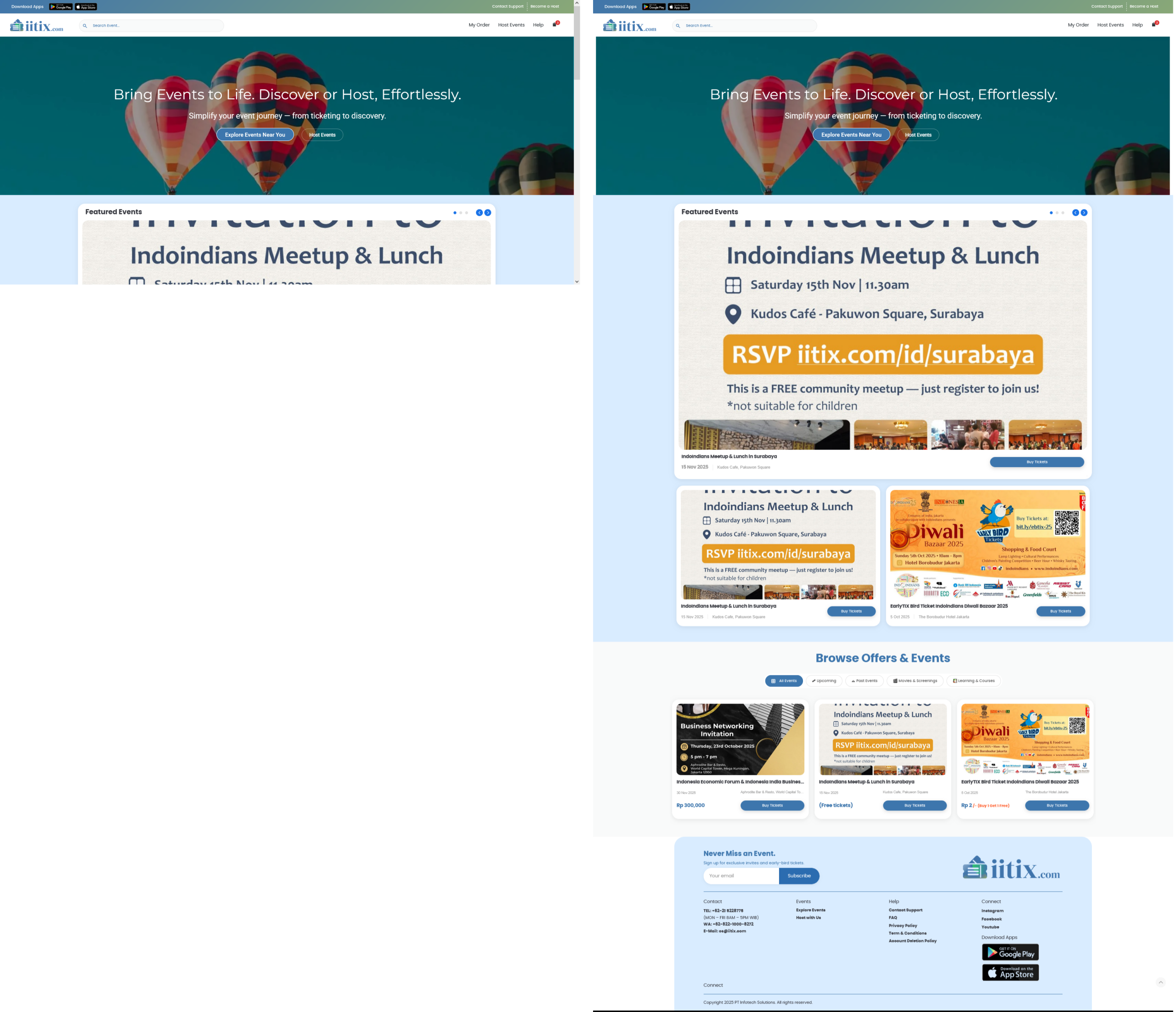
Figure 2. IITIX landing page as shown in the browser (left) and full view (right)
B. Ticket Ordering Steps
You can place an order without logging in, and the system will automatically create an account based on the information you enter at checkout.
If you have ordered before or already have an IITIX account, you can log in first and place your order using your account by following the instructions in section D (Log in with a Registered Account). Or, if you forgot your account password, you can reset it by following the instructions in section E (Reset / Forgot Password).
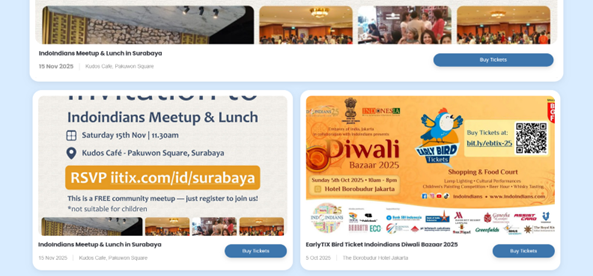
Figure 3. IITIX event and ticket list
1. On the home page, find the event/ticket you want to purchase.
2. Click “Buy Tickets” on the selected event to open the ticket details page.
3. On the details page, click “Buy Tickets” again.
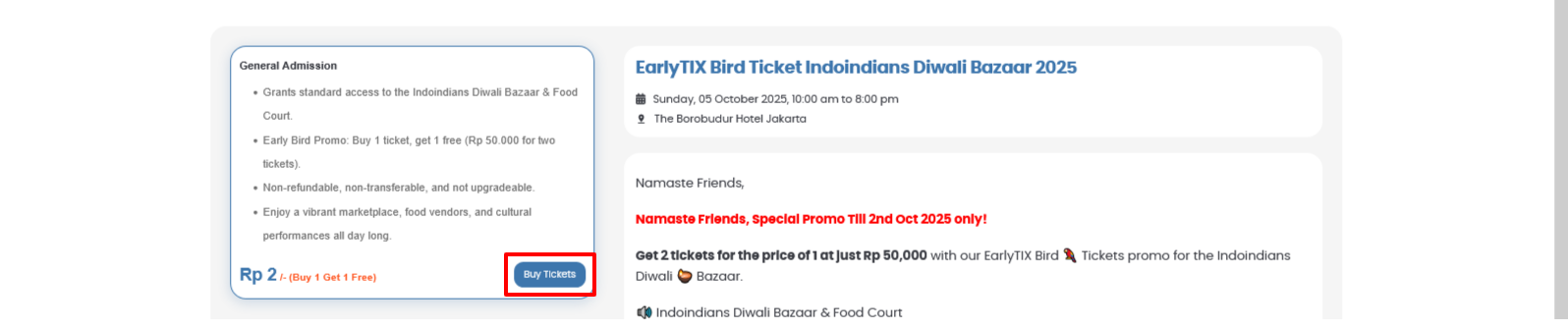
Figure 4. Ticket details page
4. A modal will appear:
- Set the number/quantity of tickets
- Price summary
- “Buy Tickets” button to add the ticket(s) to your cart
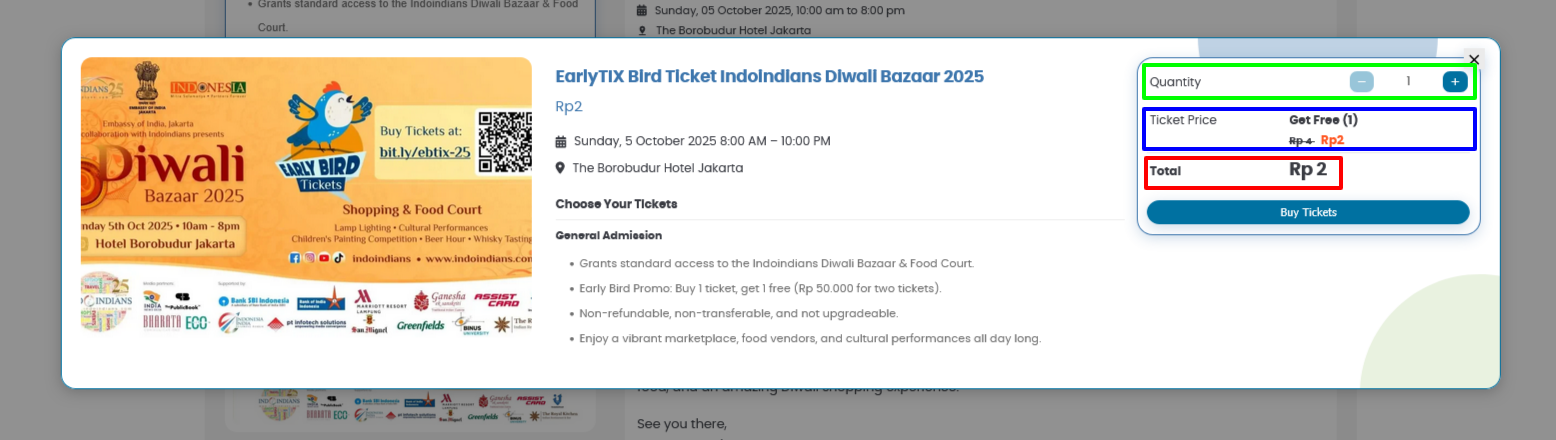
Figure 5. Ticket quantity modal
5. After it succeeds, a success notification will appear and you will be redirected to the checkout page.
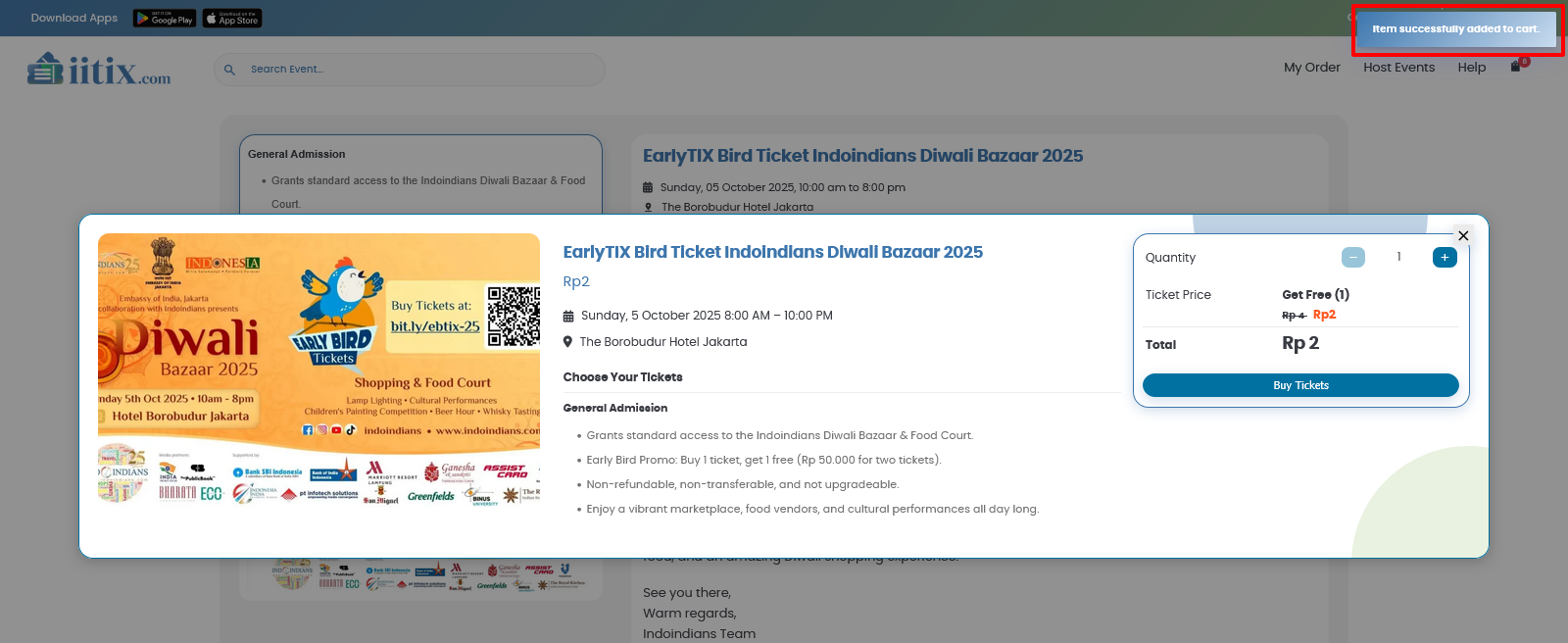 Figure 6. Success notice
6. On the checkout page:
Fill in all fields in Billing Details:
- First Name and Last Name
- Active phone number
- Active email address
- Account username (so it can be registered in the system)
Fill in all fields in Attendee Info
- First Name and Last Name
- Active phone number
(Make sure the phone number is linked to an active WhatsApp number so the system can send ticket purchase notifications for each attendee.)
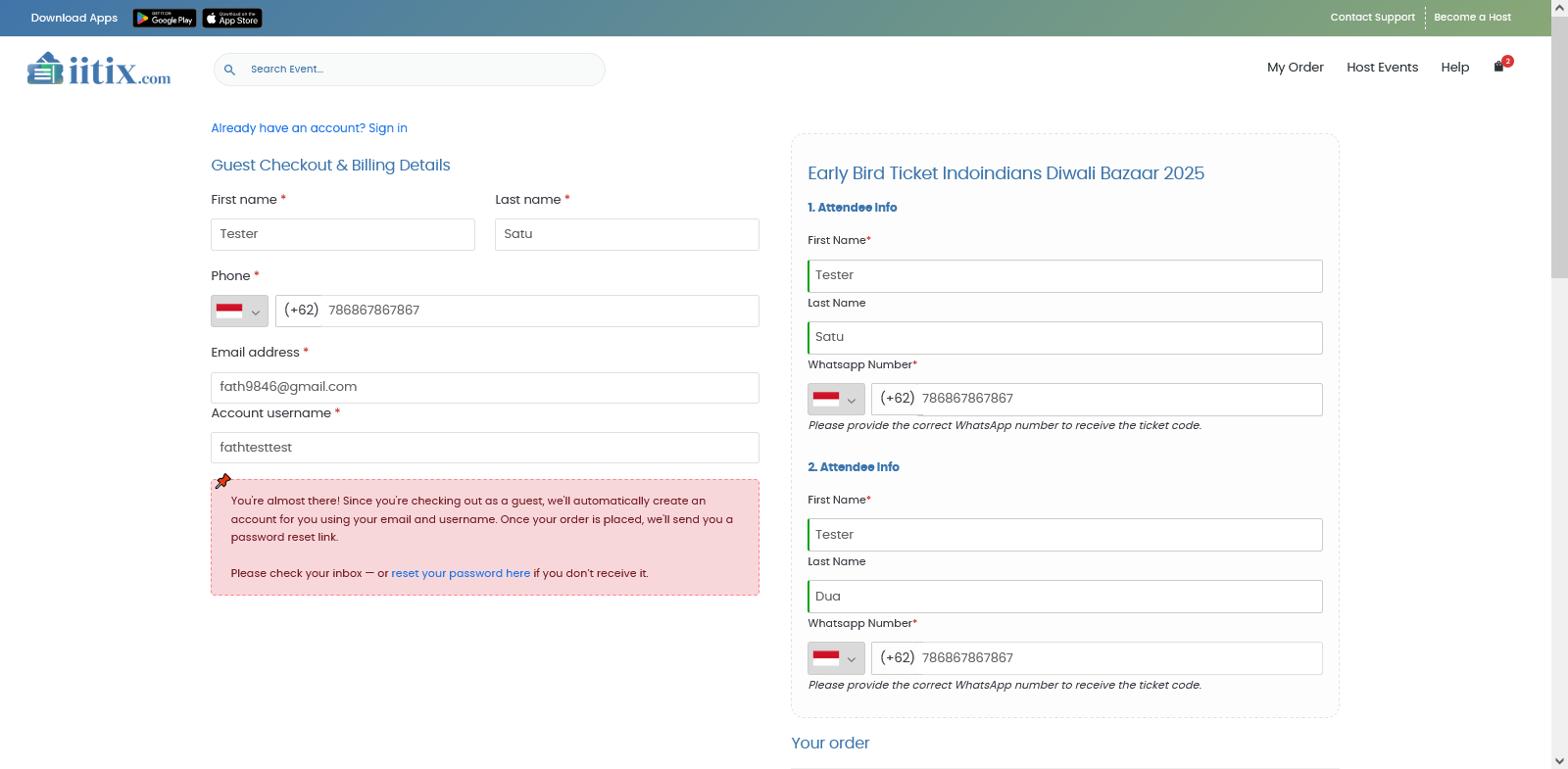 Figure 7. Checkout page after the form is completed
Note:
You can modify your items if needed on the Cart page in section C.
- Choose an available payment method (example: Mandiri Virtual Account)
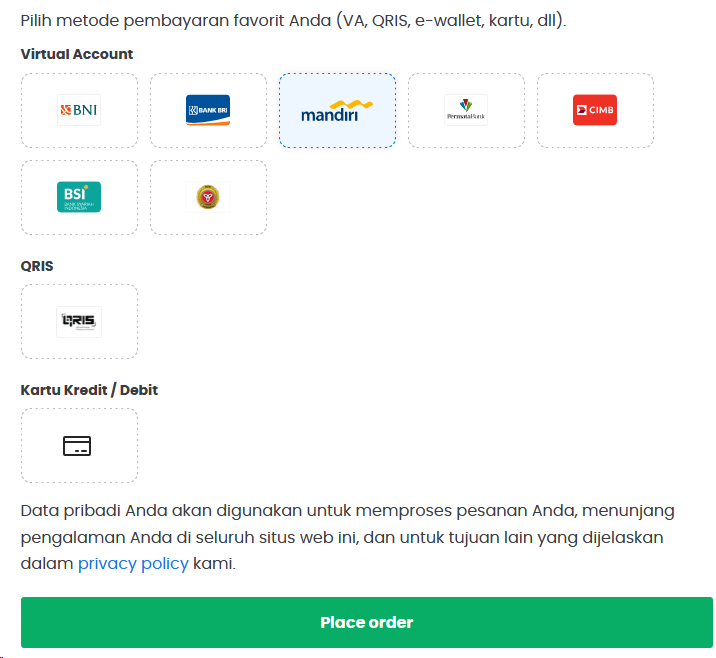
Figure 8. Supported payment method options
- Click “Place order” after confirming the order summary and price are correct.
7. You will be led to the payment page:
- Follow the payment instructions
- Complete the payment before it expires.
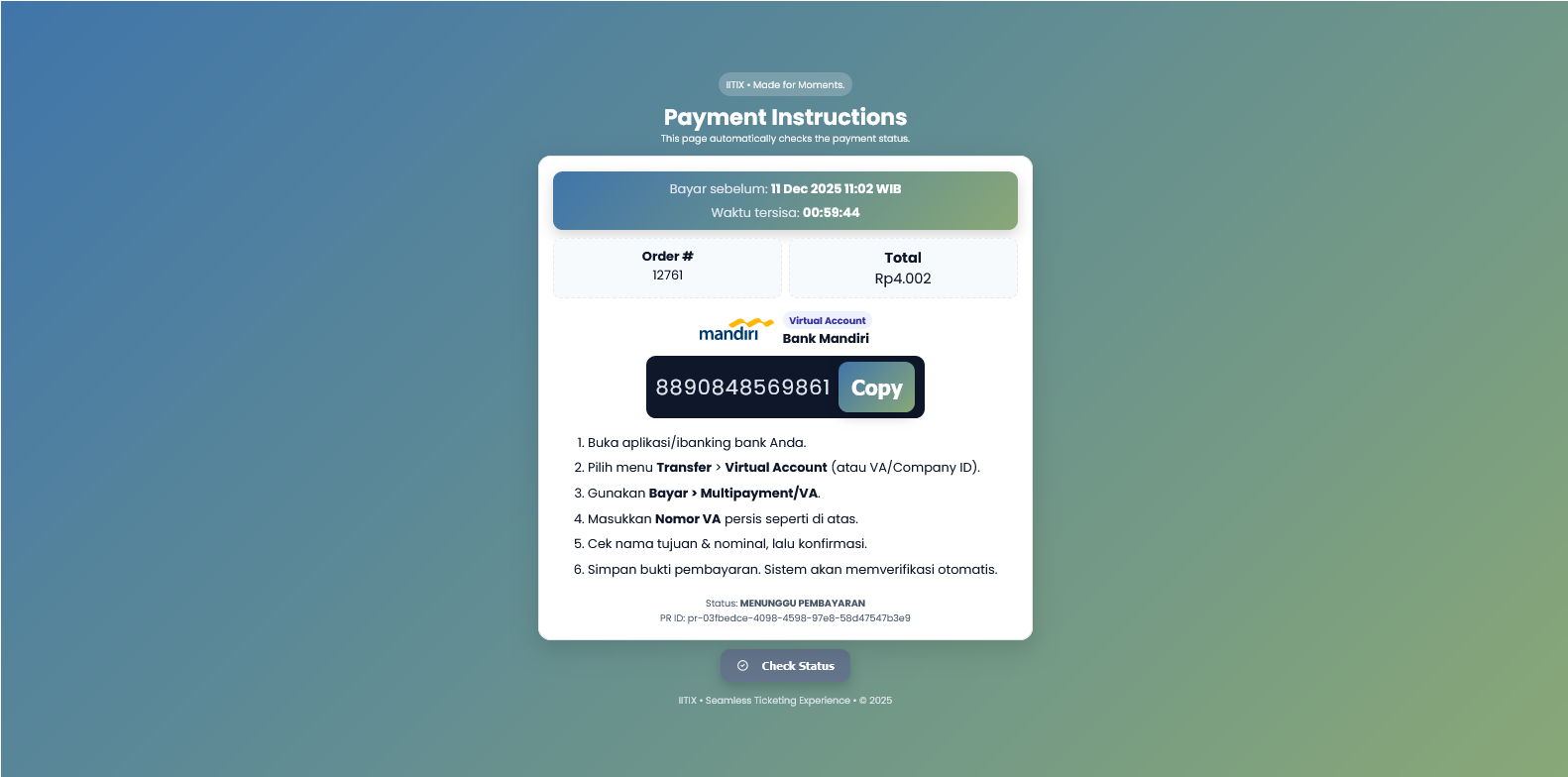 Figure 9. Payment page
8. After payment succeeds, a payment success notification will appear and you can click “View Order Details” (or you will be redirected automatically).
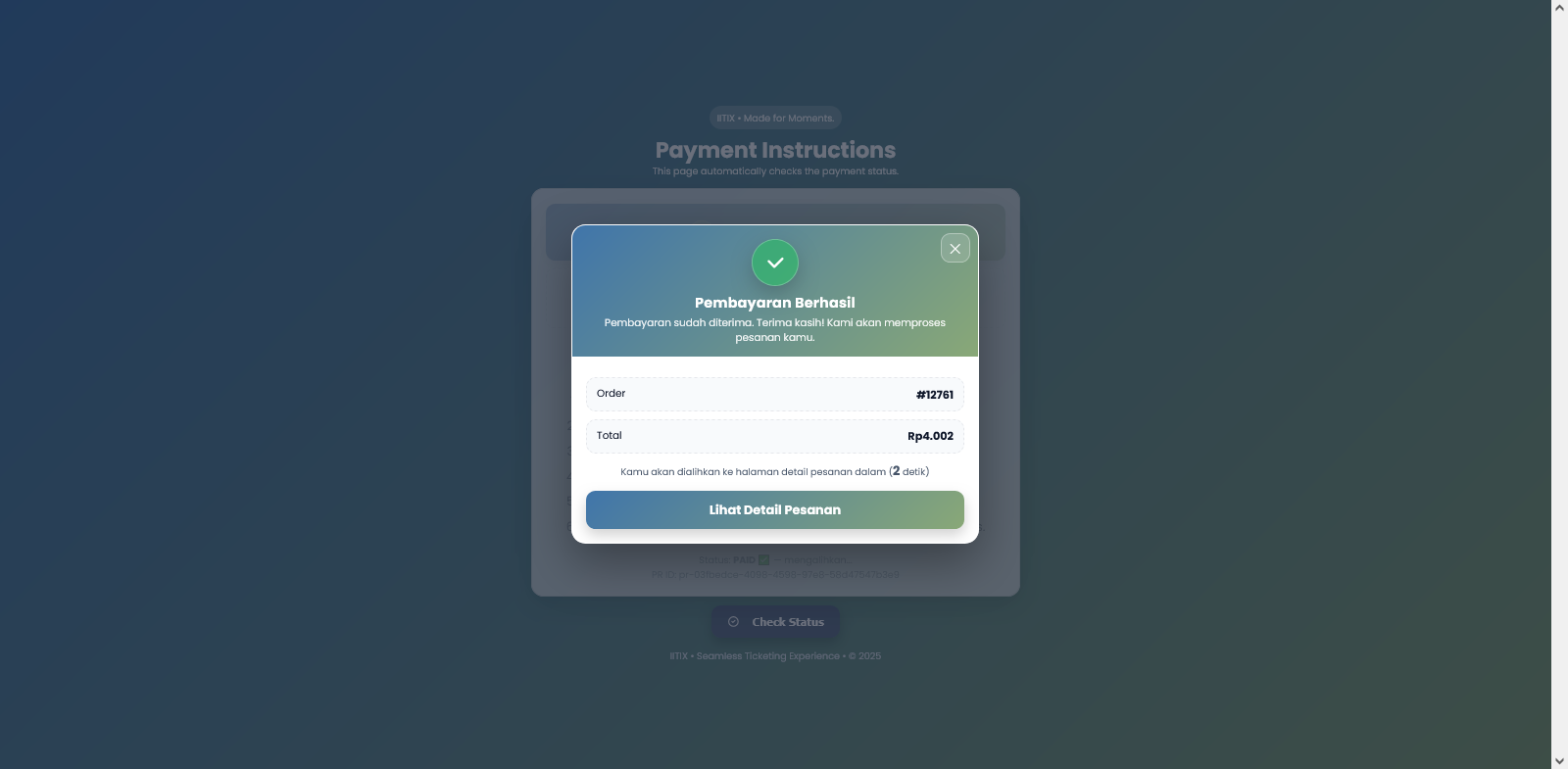
Figure 10. Payment success modal
9. On the order details page, download your ticket using the “Download” link in the ticket table.
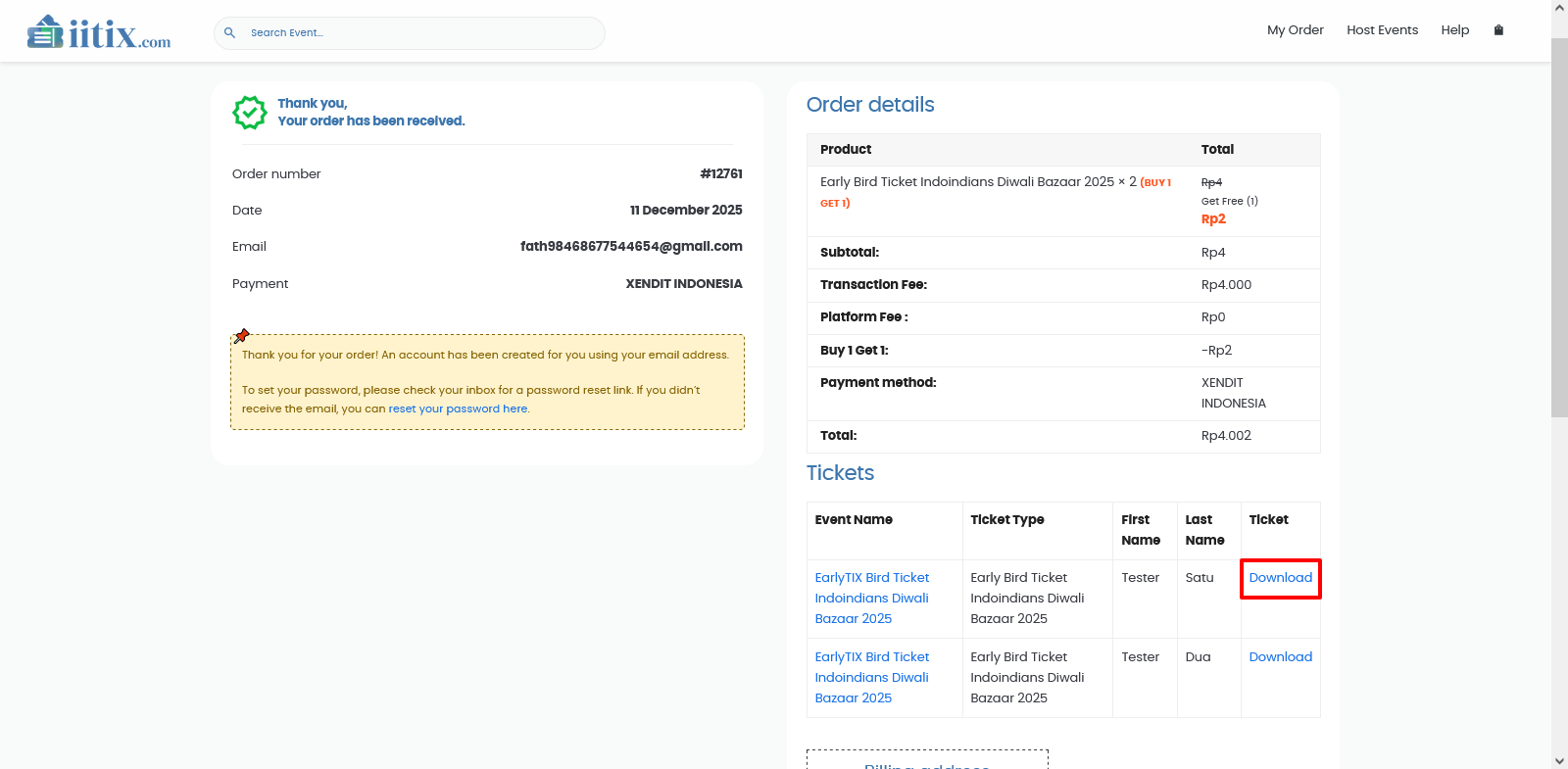
Figure 11. Download Ticket link
C. Edit Order Items and Use Coupons

Figure 12. IITIX menu to access the Cart
1. Click the menu icon (or when no items have been selected yet).
2. You will be taken to the Cart page.
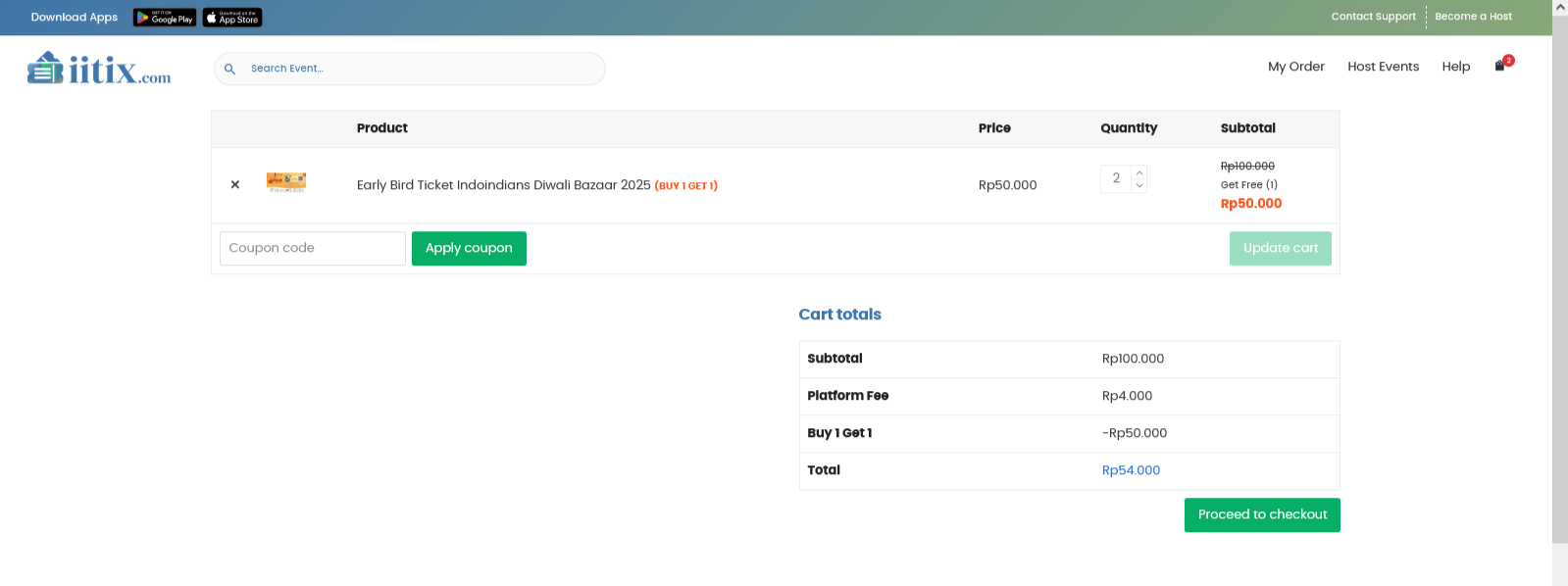 Figure 13. Cart page
3. On this page, you can:
- Change the quantity of your item(s) in the quantity input, then
- Press the button to apply the changes
- You can enter a coupon code (if any), and the system will verify it and apply price changes if your coupon is valid.
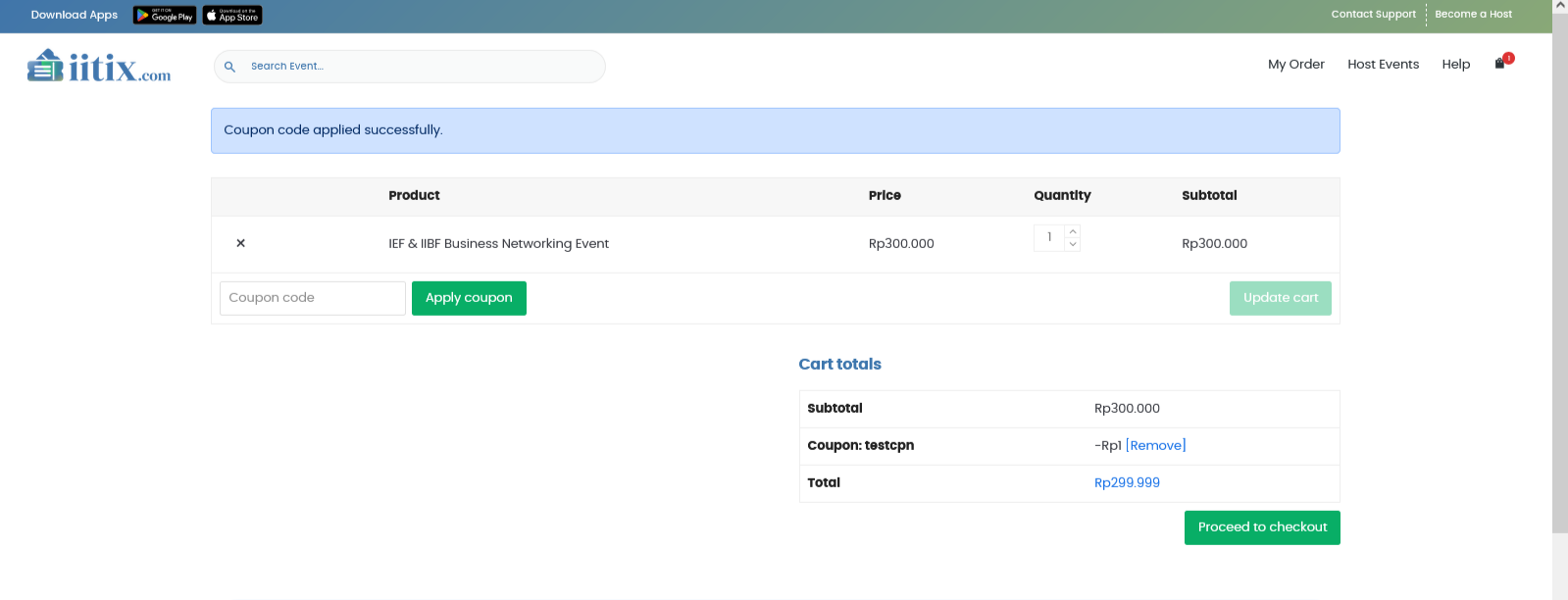 Figure 14. Cart page with coupon applied
D. Log in with a registered account
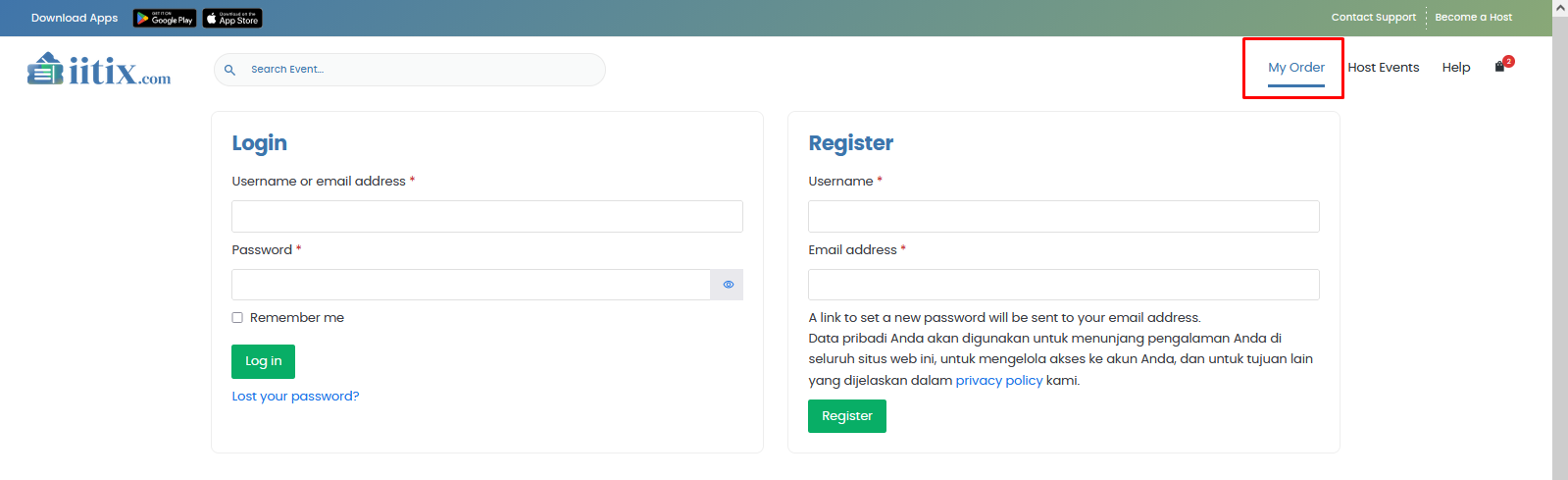 Figure 15. Login page
1. Click the “My Order” menu in the site navigation.
2. Fill in the login form with your account credentials.
3. After a successful login, you will enter the dashboard.
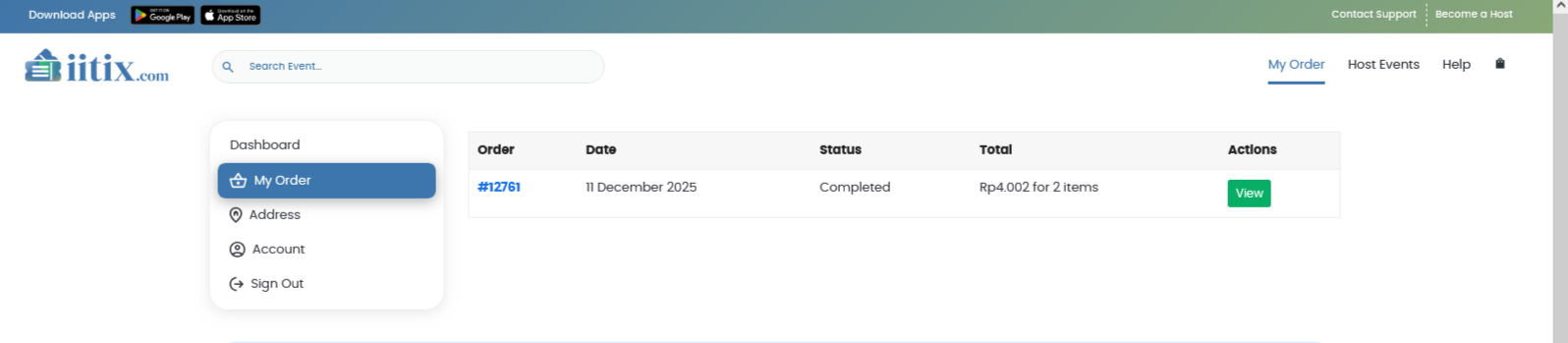 Figure 16. User dashboard page
4. After that, order tickets by following the steps in section B (Ordering Steps).
Note:
At checkout, there is also a button/link to show the login form if you already have an account.
 Figure 17. Link to toggle the login form on the checkout page
E. Reset / Forgot Password
1. Click the “lost your password” link (usually found on the login/checkout page).
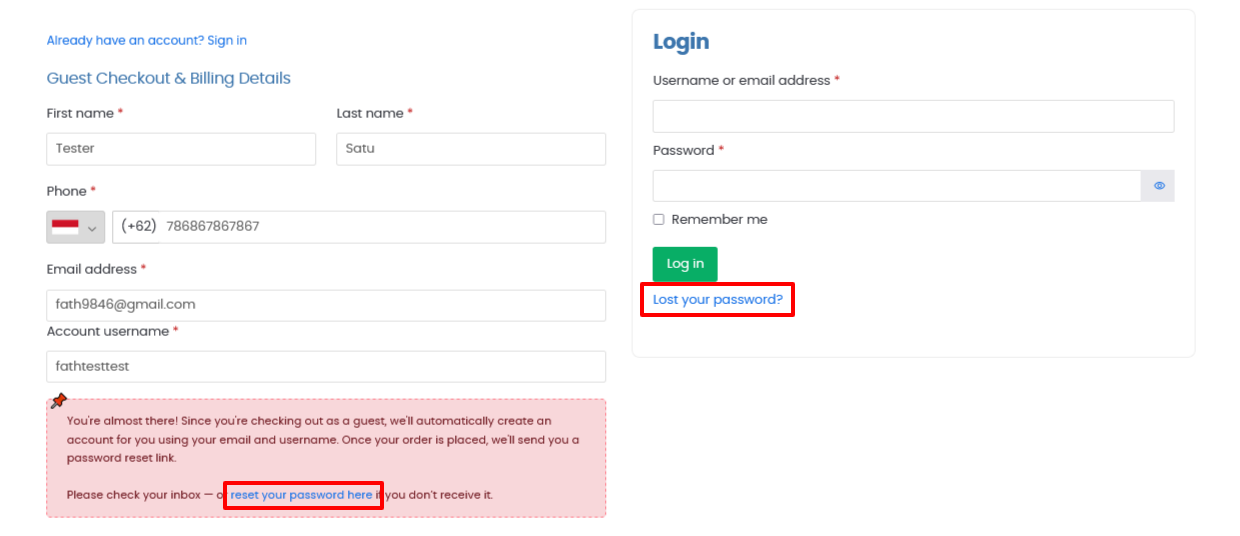 Gambar 18 Gambar Figure 18. Password reset request link on the checkout page (left) and on the login page (right)
2. Enter the email address you used when registering/ordering tickets.
 Figure 19. Password reset request form
3. The system will send an email containing a password reset link.
 Figure 20. “Password reset email sent” notice
4. Check your inbox and spam folder (sometimes email clients treat emails from the system address as spam).
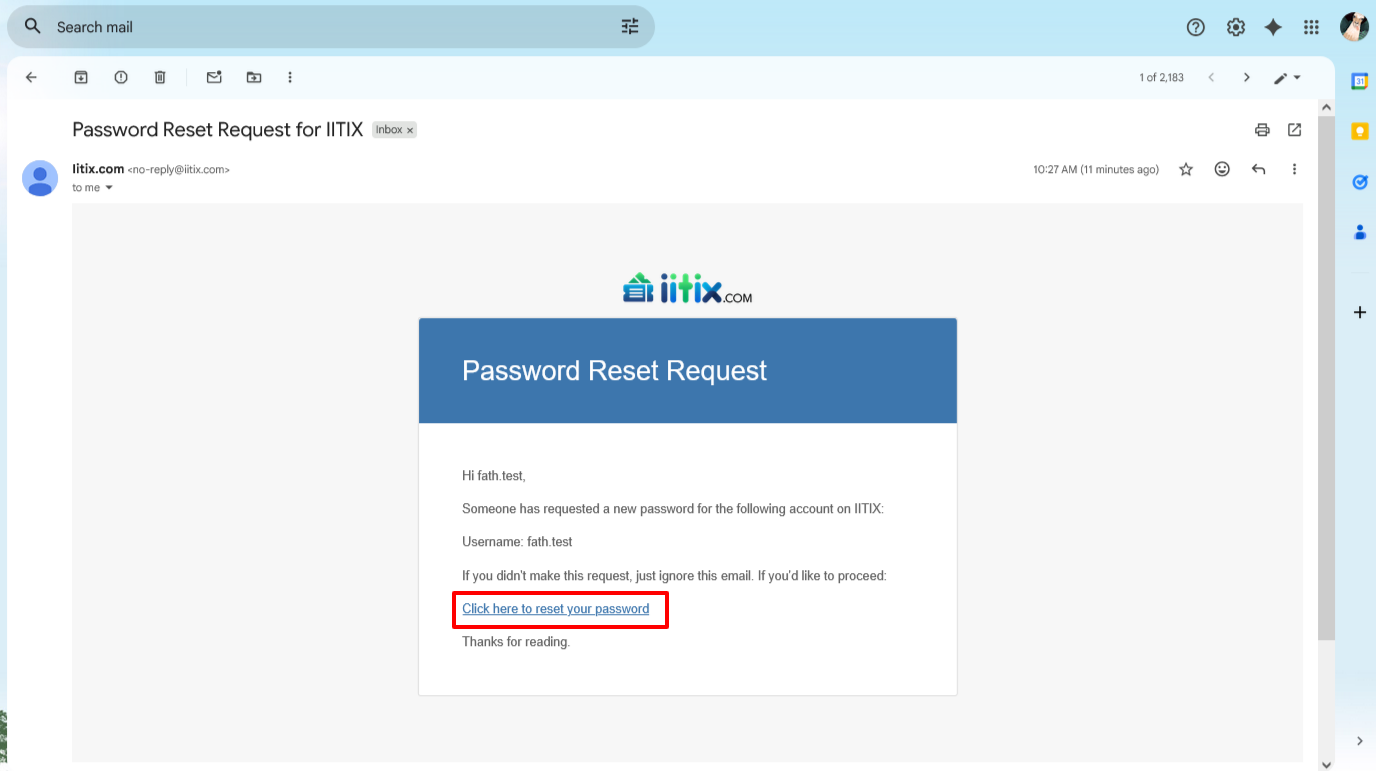 Figure 21. Password reset email
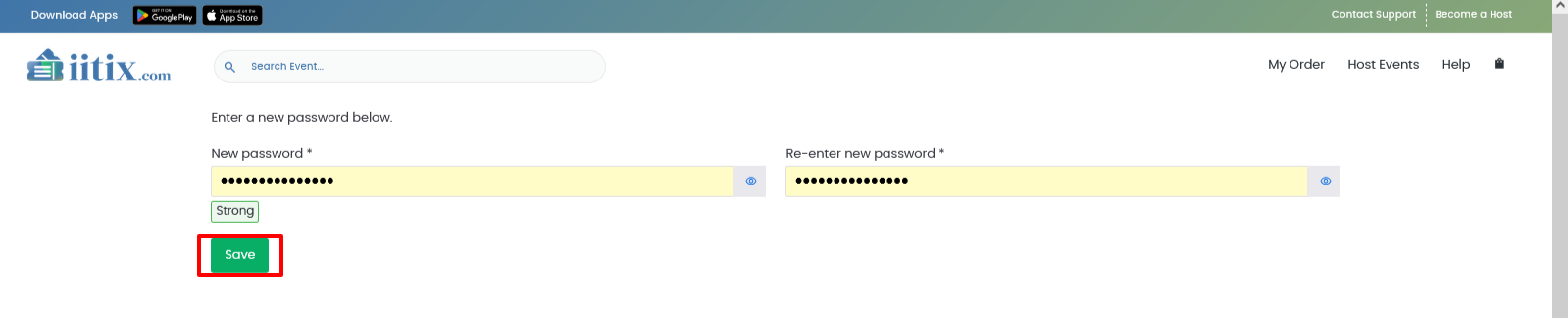 Figure 22. Reset Password page
5. Click the reset link in the email → create a new password → done. You will be redirected to the password reset success page.
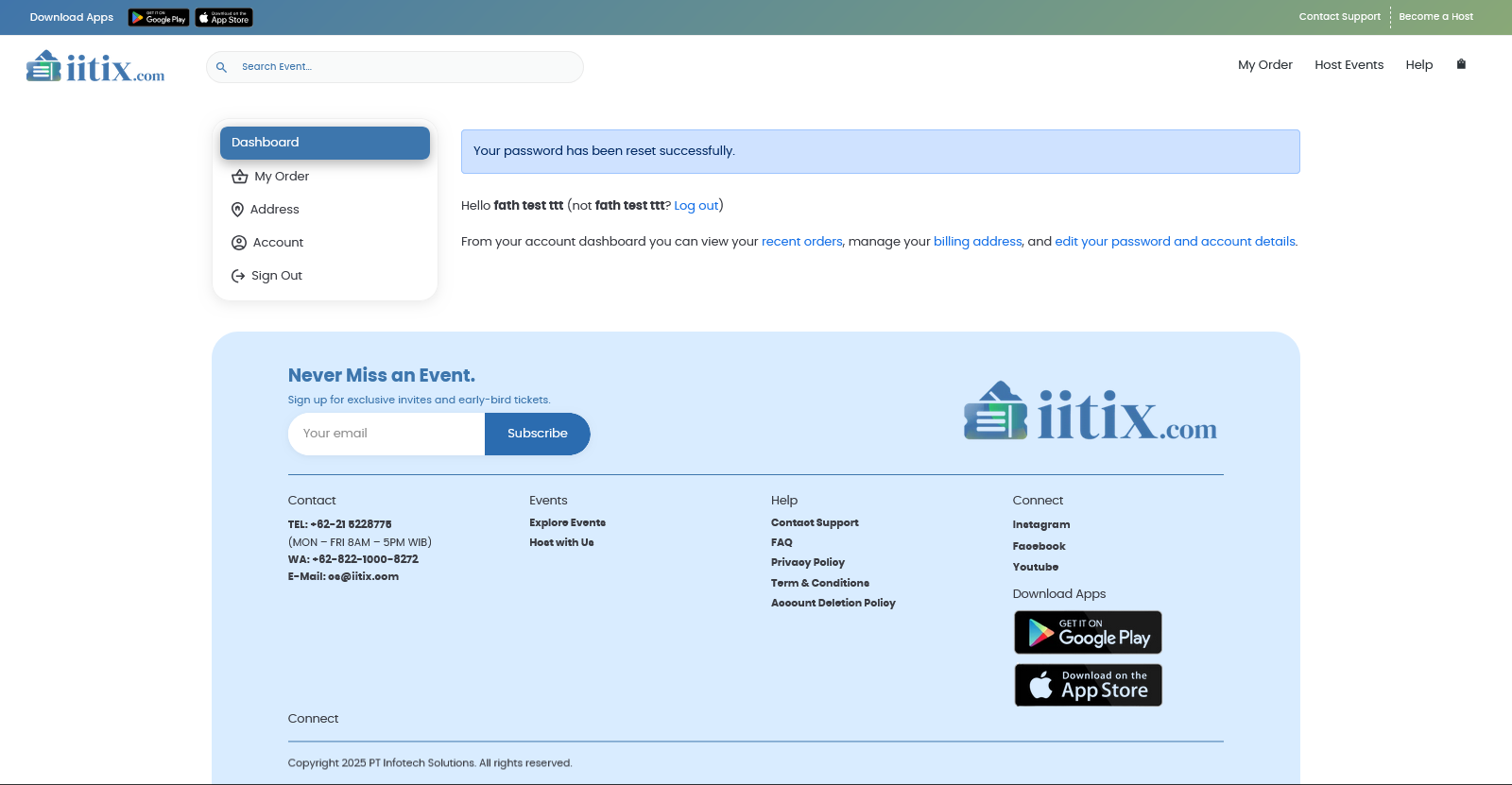 Figure 23. Password reset successful page
6. Next, you can order tickets by following the purchase process guide in section B (Ordering Steps)